
Businesses today use many online platforms to manage payments, sell products, and run their services. Whether you are a freelancer, online seller, or business owner, creating professional invoices that match your platform workflow is extremely important. Different platforms have different invoicing needs. For example, an e-commerce seller on Shopify may require order-based invoices, while freelancers using PayPal or Stripe may need service invoices for their clients.
To make invoicing easier, NexBillio provides specialized solutions that work perfectly with popular platforms. Using a Free Invoice Generator – Create & Send PDF, businesses can quickly generate professional invoices and maintain organized billing records. On this page, you will discover the best invoice generators designed for major business platforms such as Stripe, PayPal, Shopify, Amazon, eBay, and QuickBooks.
These tools help simplify invoicing, improve payment tracking, and maintain professional financial documentation.
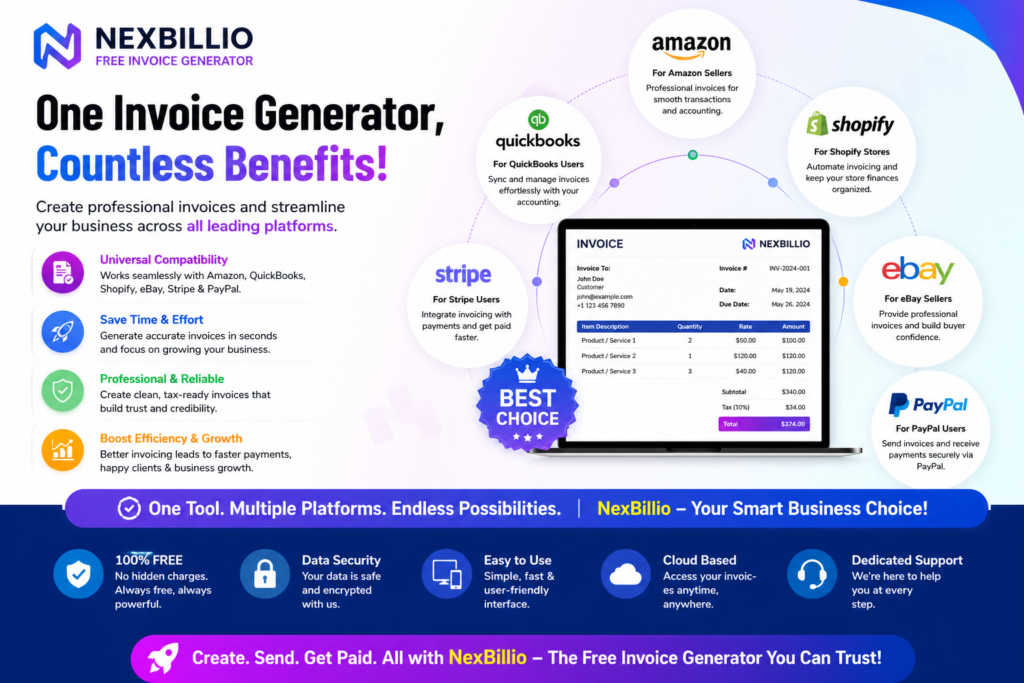
Table of Contents
- Why Platform-Specific Invoice Generators Are Important
- Free Invoice Generator For Stripe
- Free Invoice Generator For PayPal
- Free Invoice Generator For Shopify
- Free Invoice Generator For Amazon
- Free Invoice Generator For eBay
- Free Invoice Generator For QuickBooks
- Benefits of Using Platform-Based Invoice Generators
- How to Choose the Right Invoice Generator for Your Platform
1. Why Platform-Specific Invoice Generators Are Important
Every online platform has its own system for managing payments and transactions. Because of this, businesses often require invoices that match the structure of the platform they are using.
Using a platform-specific invoice generator provides several benefits:
- Better compatibility with payment systems
- Faster invoice creation
- Clear financial documentation
- Professional invoice formatting
- Improved payment tracking
Instead of manually creating invoices every time, businesses can use a Free Invoice Generator – Create & Send PDF to generate invoices quickly and send them to customers or clients.
Platform-specific invoicing tools help ensure that invoices remain clear, professional, and organized.
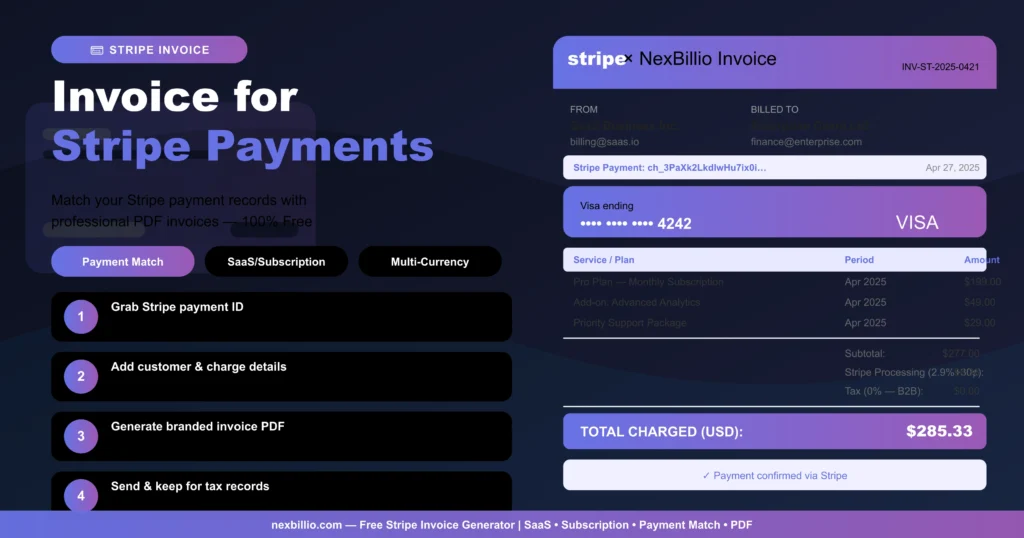
2. Free Invoice Generator For Stripe
Stripe iPerfect for freelancers, startups, and online businesses, Stripe is one of the world’s most trusted payment platforms for processing digital payments, subscriptions, and service-based transactions.
With the Free Invoice Generator for Stripe, you can quickly create professional, branded invoices tailored for Stripe payments and online transactions — helping you save time while maintaining a polished business image.
Ideal for:
- Freelancers accepting online payments
- SaaS and software companies
- Subscription-based businesses
- Online consultants and service providers
- Digital agencies and remote teams
The Free Invoice Generator for Stripe helps businesses streamline invoicing, organize Stripe transactions efficiently, and deliver professional invoices that build trust with clients and customers.
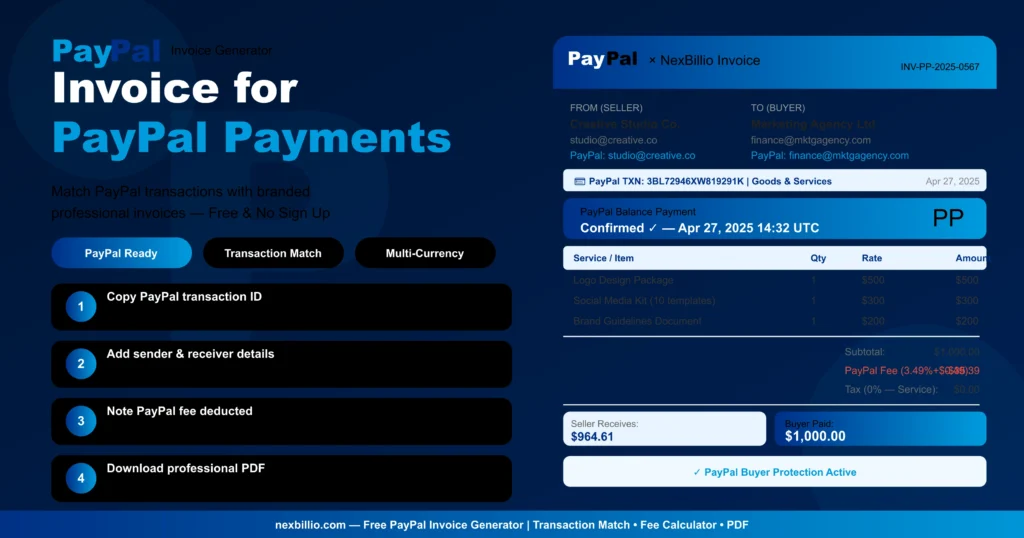
3. Free Invoice Generator For PayPal
PayPal is one of the most popular digital payment platforms used worldwide by freelancers, consultants, and online businesses. Businesses that accept payments through PayPal often need professional invoices for record keeping and customer communication. The Free Invoice Generator For PayPal helps users create clear and professional invoices that match PayPal transactions.
This tool is especially useful for:
- Freelancers and consultants
- Digital service providers
- Small businesses
- International payment transactions
Using the Free Invoice Generator For PayPal allows businesses to simplify their invoicing workflow while maintaining accurate payment records.
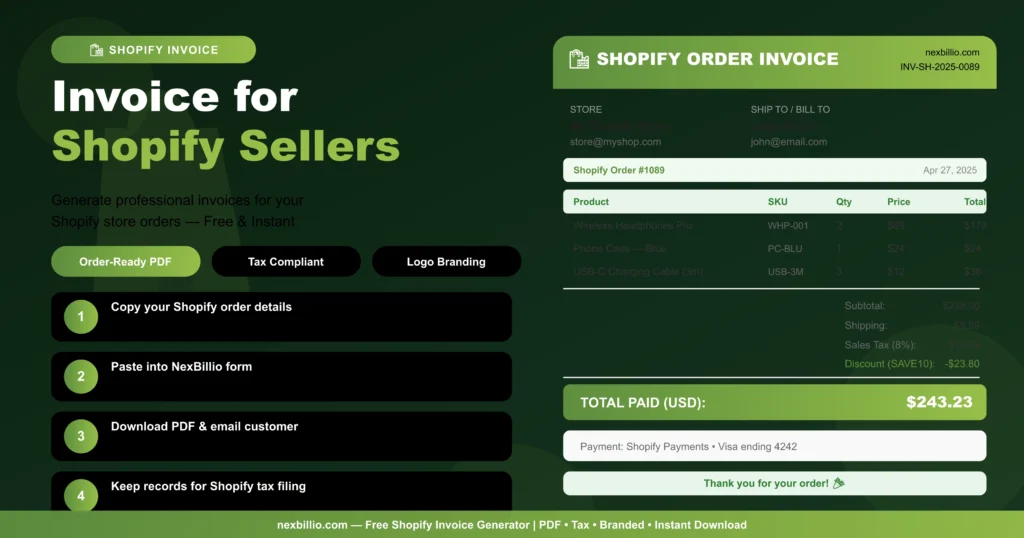
4. Free Invoice Generator For Shopify
Shopify is a leading e-commerce platform used by online store owners around the world. Shopify sellers often need invoices for product orders, customer purchases, and accounting records.
The Free Invoice Generator For Shopify helps store owners generate professional invoices for their customers.
This invoicing solution is commonly used by:
- Shopify store owners
- Dropshipping businesses
- E-commerce entrepreneurs
- Online retailers
With the Free Invoice Generator For Shopify, businesses can create invoices that match their store transactions and maintain professional customer communication.
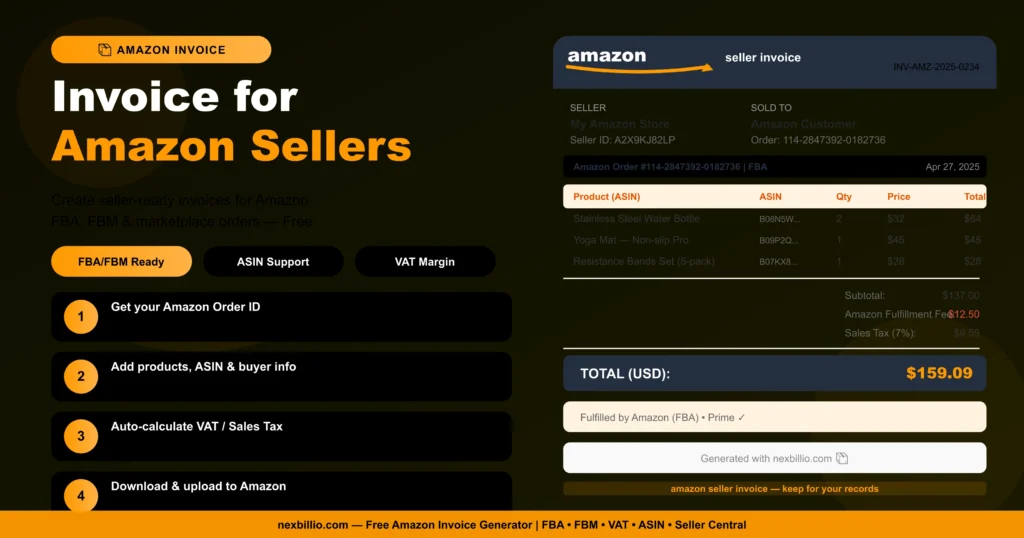
5. Free Invoice Generator For Amazon
Amazon sellers often require invoices for customer purchases, order documentation, and financial tracking.
The Free Invoice Generator For Amazon helps sellers create structured and professional invoices for their Amazon sales.
This tool is useful for:
- Amazon marketplace sellers
- FBA sellers
- Online product retailers
- E-commerce businesses
Using the Free Invoice Generator For Amazon helps sellers maintain proper documentation and improve order management.
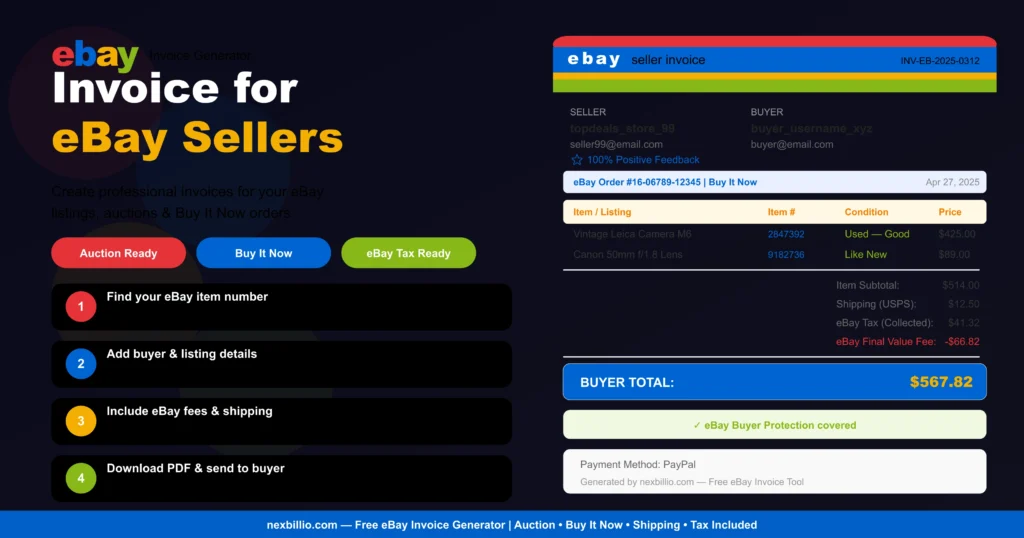
6. Free Invoice Generator For eBay
eBay sellers frequently generate invoices for buyers, especially when managing auctions, bulk orders, or international sales. The Free Invoice Generator For eBay allows sellers to create professional invoices that match eBay transactions.
This tool works well for:
- Individual eBay sellers
- Online resellers
- Auction sellers
- Small e-commerce businesses
Using the Free Invoice Generator For eBay makes it easier to manage invoices and maintain accurate financial records.
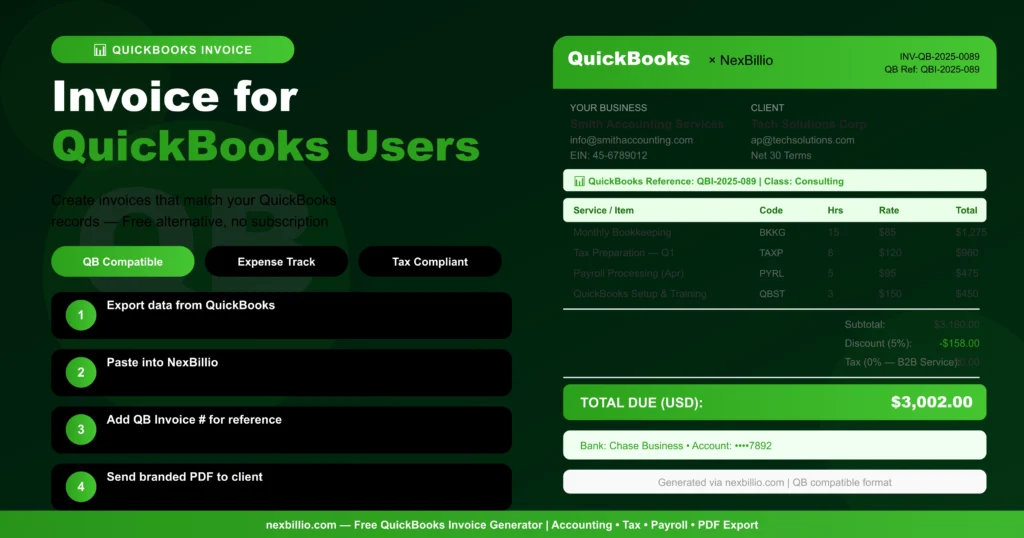
7. Free Invoice Generator For QuickBooks
QuickBooks is widely used accounting software for businesses that want to track expenses, payments, and financial records. Many companies use QuickBooks for accounting while generating invoices separately. The Free Invoice Generator For QuickBooks helps businesses create professional invoices that work alongside their accounting systems.
This solution is ideal for:
- Small businesses
- Accountants and bookkeepers
- Consultants and service providers
- Companies managing financial records
Using the Free Invoice Generator For QuickBooks helps businesses maintain accurate invoicing and accounting documentation.
8. Benefits of Using Platform-Based Invoice Generators
Using invoice generators designed for specific platforms provides several advantages.
Faster Invoice Creation
Platform-based tools simplify the invoicing process and reduce manual work.
Better Organization
Invoices remain organized and aligned with platform transactions.
Professional Documentation
Well-structured invoices improve communication with customers and clients.
Easier Financial Tracking
Invoices help businesses track payments, orders, and financial records more efficiently.
These benefits make invoicing much easier for freelancers, online sellers, and growing businesses.
9. How to Choose the Right Invoice Generator
Choosing the right invoicing tool depends on the platform you are using and the needs of your business.
When selecting an invoice generator, consider:
- Ease of use
- PDF invoice support
- Customizable templates
- Compatibility with payment platforms
- Professional invoice formatting
Many businesses prefer using a Free Invoice Generator – Create & Send PDF because it allows them to generate professional invoices quickly and share them with clients or customers.
Final Thoughts
Managing invoices across multiple payment and eCommerce platforms can often become overwhelming, especially for freelancers, growing startups, and online businesses handling frequent transactions. Switching between different systems may lead to confusion, disorganized records, and time-consuming manual work. That’s why using platform-specific invoice generators is a smarter and more efficient way to simplify your billing operations and maintain complete financial clarity.
Whether you work with Stripe, PayPal, Shopify, Amazon, eBay, or QuickBooks, having a dedicated invoice generator tailored to your platform allows you to create polished, professional invoices in just a few clicks. These tools help you organize payment details, manage transaction histories, and maintain accurate documentation without unnecessary complexity.
A reliable invoice generator not only saves valuable time but also enhances your business professionalism. From freelancers and digital agencies to SaaS companies and online stores, businesses can benefit from faster invoicing, improved record management, and a more seamless payment experience for clients and customers.
By choosing the right invoicing solution for your platform, you can streamline your entire billing workflow, minimize administrative hassle, improve financial organization, and build stronger trust through clear and professional invoicing practices.