
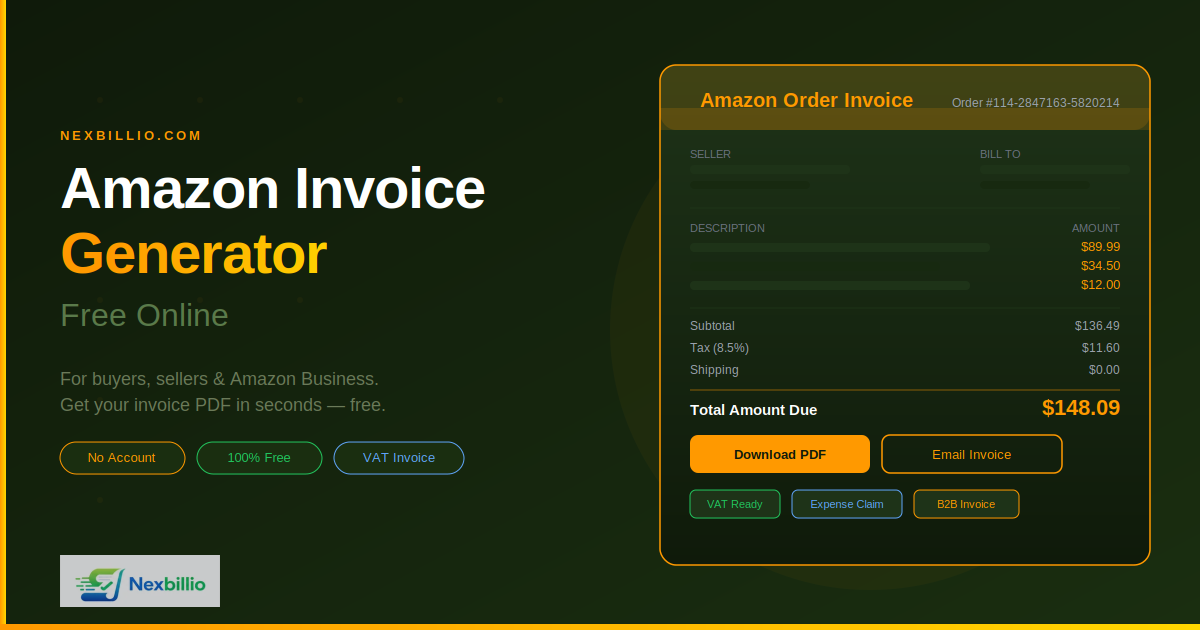
You just made a purchase on Amazon — or maybe your client paid for something through an Amazon-linked sale — and now you need a proper invoice. You look through your order history, click into the order details, and either the invoice is unavailable, the format is wrong for your accounting team, or you are a seller who needs to issue an invoice to a buyer who is asking for one with your business details on it.
This scenario plays out thousands of times every day for buyers, sellers, freelancers, and business owners who work with Amazon in some capacity. The need is always the same: a clean, professional Amazon invoice PDF that contains the right information and can be downloaded immediately.
This guide covers everything about the Amazon invoice generator — what it is, who needs it, how to get or generate an Amazon invoice for free, and why using a dedicated tool like Nexbillio is often the fastest and most professional solution available.
What Is an Amazon Invoice and Why Do You Need One?
An Amazon invoice is a formal billing document connected to an Amazon order or transaction. It goes beyond a simple order confirmation email. A proper invoice includes the seller’s business name, the buyer’s billing address, itemized line items with prices, applicable taxes, an invoice number, and the total amount paid.
There are two situations where people need an Amazon invoice:
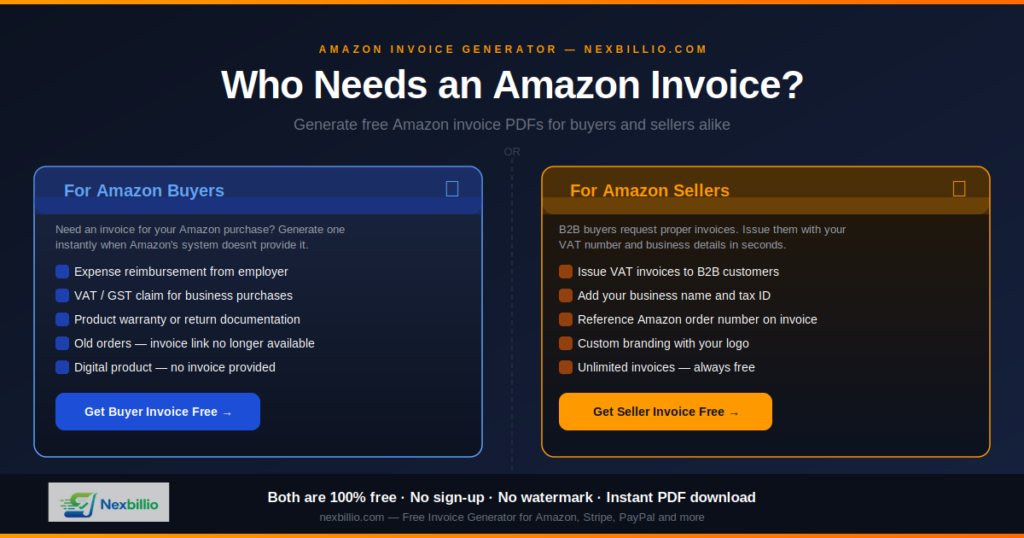
As a buyer, you need an invoice to:
- Submit an expense claim through your employer
- File VAT or GST for business purchases
- Process a product return or warranty claim where proof of purchase is required
- Keep accurate records for business accounting and tax filing
- Satisfy your company’s finance team, which typically requires formal invoices rather than order confirmation emails
As a seller on Amazon, you need to generate an invoice to:
- Provide a buyer-ready invoice to B2B customers who need it for tax purposes
- Include your business name, address, and VAT or tax registration number
- Issue invoices for orders where Amazon’s default system does not automatically produce one
- Send corrected invoices when client details were wrong on the original
The demand for Amazon invoices is higher than most people realize. In many countries — particularly across the European Union, UK, Canada, and Australia — VAT invoices are a legal requirement for business purchases above a certain value. Amazon Business accounts handle this more automatically, but individual sellers and standard buyer accounts frequently fall through the cracks.
How to Download an Amazon Invoice as a Buyer — The Official Method
Before turning to a third-party tool, it is worth knowing the built-in method Amazon provides for downloading your own invoice as a buyer. This works for most standard orders.
Here is the step-by-step process:
Step 1: Log Into Your Amazon Account Go to Amazon.com (or your regional Amazon site) and log into your account.
Step 2: Go to Your Orders Click your account name at the top right of the page. From the dropdown, select Returns & Orders or navigate directly to Your Orders from the main account menu.
Step 3: Find the Relevant Order Scroll through your order history or use the search bar to locate the specific order you need an invoice for. Orders placed within the last three to six months are easiest to find.
Step 4: Click on Order Details Click on the order to open the full order details page.
Step 5: Look for the Invoice Link On the order details page, look for an Invoice button or dropdown link. For most physical goods sold and fulfilled by Amazon, this link appears once the order has shipped. Clicking it downloads a PDF invoice directly.
Step 6: Download the PDF Once you click the invoice link, the PDF will either open in your browser or download automatically depending on your settings. Save it to your device and you are done.
That is the straightforward path. But here is where things get complicated.
Why Amazon Invoice Downloads Do Not Always Work
The built-in invoice download covers many orders, but not all. There are several common situations where buyers cannot find or access their Amazon invoice:
- Digital purchases — Amazon generally does not provide traditional invoices for Kindle books, Prime Video rentals, software downloads, or digital subscriptions. These transactions may only have a receipt or order summary.
- Third-party seller orders — When you buy from a third-party seller rather than directly from Amazon, the seller controls the invoicing. Some sellers issue invoices automatically; others require you to contact them directly to request one.
- Older orders — For orders older than a year or two, the invoice link may no longer appear or the document may be archived in a way that is not easily accessible.
- Gift orders — Invoices for gift orders intentionally omit pricing to protect the sender’s privacy. The full invoice is still in your account, but you need to access it through Your Orders rather than through the packing slip.
- Marketplace seller delays — Some third-party sellers take 24 to 48 hours or longer to issue invoices, even after an order ships. You may need to wait or follow up directly.
- Missing VAT details — If your account does not have your business VAT number registered, Amazon may generate a receipt rather than a formal VAT invoice. Adding your VAT number in account settings helps, but it does not always retroactively update past orders.
When any of these situations apply, you have two options: contact the seller or Amazon support and request a manual invoice, or use a free Amazon invoice generator online to create the document yourself with the correct details.
Amazon Invoice Generator Free — Create One Yourself in Minutes
When the built-in Amazon invoice is not available or does not meet your requirements, a free online invoice generator gives you a clean, professional alternative. You provide the details from your order — product description, price, tax, shipping charges, payment date — and the tool generates a properly formatted invoice PDF.
This is especially common in these situations:
- You are a business buyer who needs a formal invoice for expense reimbursement and the Amazon system only shows an order summary
- You are an Amazon seller who needs to send a branded, professional invoice to a B2B customer with your business and VAT details
- You need an invoice for a digital product purchase where Amazon does not provide one
- You want an invoice for an older order where the link is no longer available
- The client needs specific fields like a PO number, project code, or billing address that Amazon’s system does not include
How to Generate an Amazon Invoice PDF Free with Nexbillio
Nexbillio makes this process fast and completely free. Here is exactly how to do it:
Step 1: Open Nexbillio Go to Nexbillio.com. No account creation or email address is needed. The tool opens directly in your browser on desktop or mobile.
Step 2: Select Your Currency Choose the currency that matches your Amazon order — USD for US purchases, GBP for UK orders, EUR for European orders, and so on. Nexbillio supports over 100 currencies.
Step 3: Set the Document Type Select Invoice from the document type dropdown. You can also choose Receipt if that format better suits your needs.
Step 4: Upload Your Logo (Optional) If you are an Amazon seller generating an invoice to send to a buyer, upload your business logo. This makes the invoice look professional and helps your client match it to your brand. Buyers generating personal expense invoices can skip this step.
Step 5: Fill in Your Business Information Enter your business name, full address, email, phone, and your VAT or tax ID number if applicable. For Amazon sellers, this section represents your seller profile.
Step 6: Enter the Buyer’s Details Add the client’s or buyer’s name, company name if applicable, and billing address. For expense reimbursement invoices, this is typically your employer’s company name and address.
Step 7: Set Invoice Number and Date Create a unique invoice number. You can use the Amazon order number as the reference number for easy tracking. Set the invoice date to match the date of the Amazon transaction.
Step 8: Add Line Items List each product or item from the Amazon order with a clear description, quantity, and unit price. Copy the exact item names and amounts from your Amazon order details page to keep everything accurate.
Step 9: Add Shipping Charges and Tax If your Amazon order included shipping fees, add them as a separate line item labeled “Shipping.” Then apply the tax rate that was charged on the order. Nexbillio calculates the totals automatically.
Step 10: Add Notes In the notes section, you can reference the Amazon order number, add your payment method, or include any other details relevant to your situation.
Step 11: Download the PDF Click Download PDF. Your Amazon invoice is generated instantly and ready to share, print, or attach to an expense claim.
What a Proper Amazon Invoice Should Include
Whether you download it from Amazon directly or generate it using a free tool, a complete and valid Amazon invoice must contain all of the following:
- The word “Invoice” clearly stated at the top of the document
- A unique invoice number for tracking and accounting purposes
- The invoice date — matching the date of the Amazon transaction
- The seller’s full name, business name, address, and contact information
- The seller’s VAT number or tax ID if the transaction is VAT-applicable
- The buyer’s name, company name if applicable, and billing address
- The buyer’s VAT number if they are a VAT-registered business claiming input tax
- Itemized line items showing each product purchased with description, quantity, and unit price
- Subtotal before tax and shipping
- Tax rate applied and the tax amount
- Shipping charges if applicable
- Grand total including all charges and taxes
- Payment method — whether paid by card, Amazon Pay, or another method
- A reference to the Amazon order number for cross-referencing
Every one of these fields serves a purpose. Finance teams, tax authorities, and accounting software all expect to find this information on a formal invoice. Missing even a few of them can result in an expense claim rejection or a tax compliance issue.
Amazon Invoice Generator for Sellers — A Different Requirement
For Amazon sellers, the invoicing situation is slightly different from the buyer side. When a business customer purchases from your Amazon listing, they may contact you through the messaging system to request a formal invoice that includes your business name, registered address, and VAT or GST details.
Amazon’s Seller Central does have an invoice generation feature, but it is not always flexible enough to include all the fields international B2B buyers need. A free external invoice generator gives you full control.
As an Amazon seller, generating a proper invoice means:
- Including your registered business name and address — not just your Amazon store name
- Listing your VAT registration number clearly (mandatory for EU sales above certain thresholds)
- Referencing the Amazon order number so the buyer can match it to their purchase history
- Calculating the correct tax for the buyer’s jurisdiction
- Adding a sequential invoice number that fits your own numbering system for accounting compliance
Nexbillio handles all of this. You can generate unlimited seller invoices for free and email them directly to buyers from within the tool.
Frequently Asked Questions About Amazon Invoice Generators
Is it legal to generate an Amazon invoice using a third-party tool?
Yes, completely. Generating an invoice for a legitimate transaction is a standard business practice. Whether you are a seller issuing an invoice to a buyer, or a buyer creating a document for expense purposes, using a free invoice generator tool is legal in all major markets. The important thing is that the information on the invoice accurately reflects the real transaction.
Can I generate an Amazon invoice for a past order?
Yes. For older orders where the invoice link is no longer available in your account, you can generate one manually using Nexbillio by entering the details from your order confirmation email or order history page.
What if the third-party seller on Amazon did not send an invoice?
First, contact the seller directly through Amazon’s messaging system and request a formal invoice. If they do not respond within a reasonable time, or if your need is urgent, you can create one yourself using the order details. Always reference the Amazon order number clearly on the invoice.
Do I need an account to use a free Amazon invoice generator?
With Nexbillio, no. The tool works without any sign-up, account creation, or email address. Open the tool, fill in your details, and download your PDF immediately.
What currency should I use on my Amazon invoice?
Always match the currency used in your original Amazon transaction. If you purchased in GBP through Amazon UK, the invoice should be in GBP. If the purchase was in USD through Amazon US, use USD. Nexbillio supports all major currencies including USD, GBP, EUR, CAD, AUD, INR, and more.
Can Amazon sellers use a free invoice generator for all their orders?
Yes. There is no limit on how many invoices you can generate with Nexbillio. Whether you have five orders a month or five hundred, you can create professional invoices for all of them without any cost.
Is my data safe when I use an online invoice generator?
Nexbillio uses HTTPS encryption for all data transmitted through the tool. Because no account is required, no personal or business information is stored on any server after your session. Your data stays private.
The Difference Between an Amazon Order Summary, Receipt, and Invoice
This is a point of confusion that comes up repeatedly, especially for buyers trying to submit expense claims.
An order summary is what appears in your Amazon account and in the confirmation email. It lists what you ordered and when, but it is not a formal financial document. Many finance teams will not accept it as valid documentation.
A receipt confirms that payment was made. It shows the amount charged and the payment method, but may not include itemized details, tax breakdowns, or the formal structure required for business accounting.
An invoice is a formal billing document that meets accounting and tax standards. It includes all the fields described above, carries a unique invoice number, and can be submitted to tax authorities, finance departments, or used in official financial records.
When your employer’s finance team says “we need an invoice, not just the order email,” they mean the third option. That is exactly what Nexbillio generates.
Nexbillio for Amazon Invoice Generation — Key Advantages
There are several free invoice tools out there, but Nexbillio is built specifically to handle the kind of invoices that Amazon buyers and sellers actually need:
- No sign-up required. Start immediately without creating an account.
- Completely free. Unlimited invoice generations with no hidden charges.
- Multi-currency support. Covers all Amazon regional marketplaces — US, UK, Germany, France, Canada, Australia, Japan, India, and more.
- Full customization. Add logos, tax IDs, PO numbers, and custom notes.
- Instant PDF download. Your invoice is ready in seconds, not minutes.
- Email delivery. Send the invoice directly to your client or employer without leaving the tool.
- Works on any device. Accessible from desktop, tablet, or mobile without any software installation.
- Secure. HTTPS protected and no data retention after your session ends.
Final Thoughts
Getting an Amazon invoice should not be complicated. But between missing invoice links, third-party seller delays, digital product gaps, and VAT compliance requirements, the reality is that many buyers and sellers need a better solution than what Amazon’s built-in system provides.
A free Amazon invoice generator online solves this problem entirely. With Nexbillio, you take the details from any Amazon transaction and turn them into a professional, complete, ready-to-use invoice PDF in under two minutes — for free, with no account, on any device.
Whether you are a buyer who needs an invoice for your expense report, an Amazon seller issuing invoices to business customers, or a small business owner keeping accurate records of your Amazon purchases, the tool handles it cleanly and professionally every time.